Step by Step: How to Run a Digital School Scavenger Hunt
A digital school scavenger hunt is one of the most engaging things you can run in a school setting, and it's more manageable than it sounds. Pick your goal, set your boundaries, build your Missions in Goosechase, and let students take it from there. This guide walks you through the whole thing, step by step.
"We Should Do a Scavenger Hunt This Year"
Famous last words. The idea sounds great in a planning meeting. Then the logistics creep in: how do you track teams, manage submissions, keep students from finishing in 10 minutes, and stay in control of an entire building?
The good news: a digital school scavenger hunt solves most of those problems before the day even arrives. When everything runs through a platform instead of laminated clue sheets, you can see exactly what's happening in real time, keep teams on track, and actually enjoy watching your students participate.
This guide gives you a clear, repeatable process to make it happen.
By the end of this post, you'll be able to:
- Design a digital school scavenger hunt that fits your space, your students, and your goals
- Build and launch your Experience using Goosechase
- Keep things organized and manageable on the day
What you'll need:
- A device to build your Experience (desktop or laptop recommended)
- Student devices: tablets, laptops, Chromebooks, or smartphones
- A Goosechase account (free for K-12 educators for up to 5 teams of students)
- 1 hour to plan and build; 45 minutes to 2 hours for the event itself
How to Run a Digital School Scavenger Hunt
Step 1: Decide What the Hunt is For
Your goal shapes everything else. A digital school scavenger hunt can serve a lot of purposes:
- Curriculum reinforcement: Students find real-world examples of concepts they've been studying
- School orientation: New students explore the building and locate key spaces
- Community building: Cross-class or homeroom teams work together on shared challenges
- Field day or spirit week: High-energy fun that still feels purposeful
Start here and the rest of the planning becomes much easier.
Step 2: Set Your Boundaries
Before you build anything, decide where students can go and what the rules are. Confirm your location scope (one classroom, one floor, the whole building, outdoors), any off-limits areas, movement rules, and your overall time limit. Write it down. You'll share it with students before the game starts.
Step 3: Build your Missions in Goosechase
This is where the Experience comes to life. Goosechase is built around Missions: individual tasks students complete and submit directly through the app or web browser on their devices.
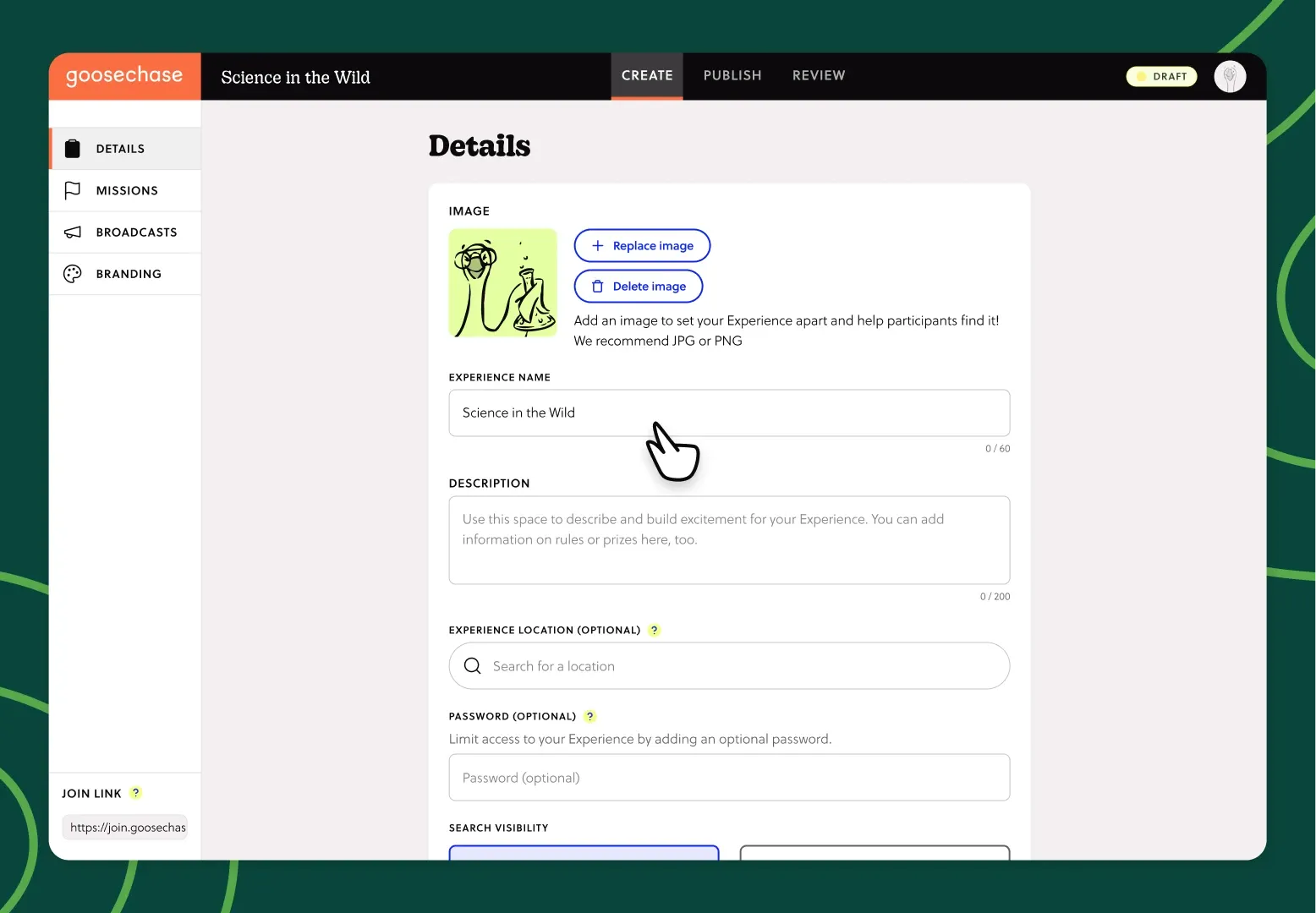
To get started:
- Create a free Goosechase account
- Open Goosechase Studio and click Create Experience
- Start adding Missions using the Mission builder
Mission types to use in a digital school scavenger hunt:
- Photo: "Take a photo of your whole team in front of the main office sign"
- Video: "Record a 15-second explanation of a concept from this unit"
- Text: "What year was our school founded? Check the trophy cabinet."
- GPS check-in: Use these for specific location stops around the building
For events where you want groups spread out across the space, gated Missions work well. Teams must complete one Mission before the next one is revealed, which keeps everyone from racing to the same spot at once.
Aim for 10 to 15 Missions for a 45-to-60-minute event. Assign higher point values to Missions that require more creativity or collaboration.
Step 4: Set Up Your Teams
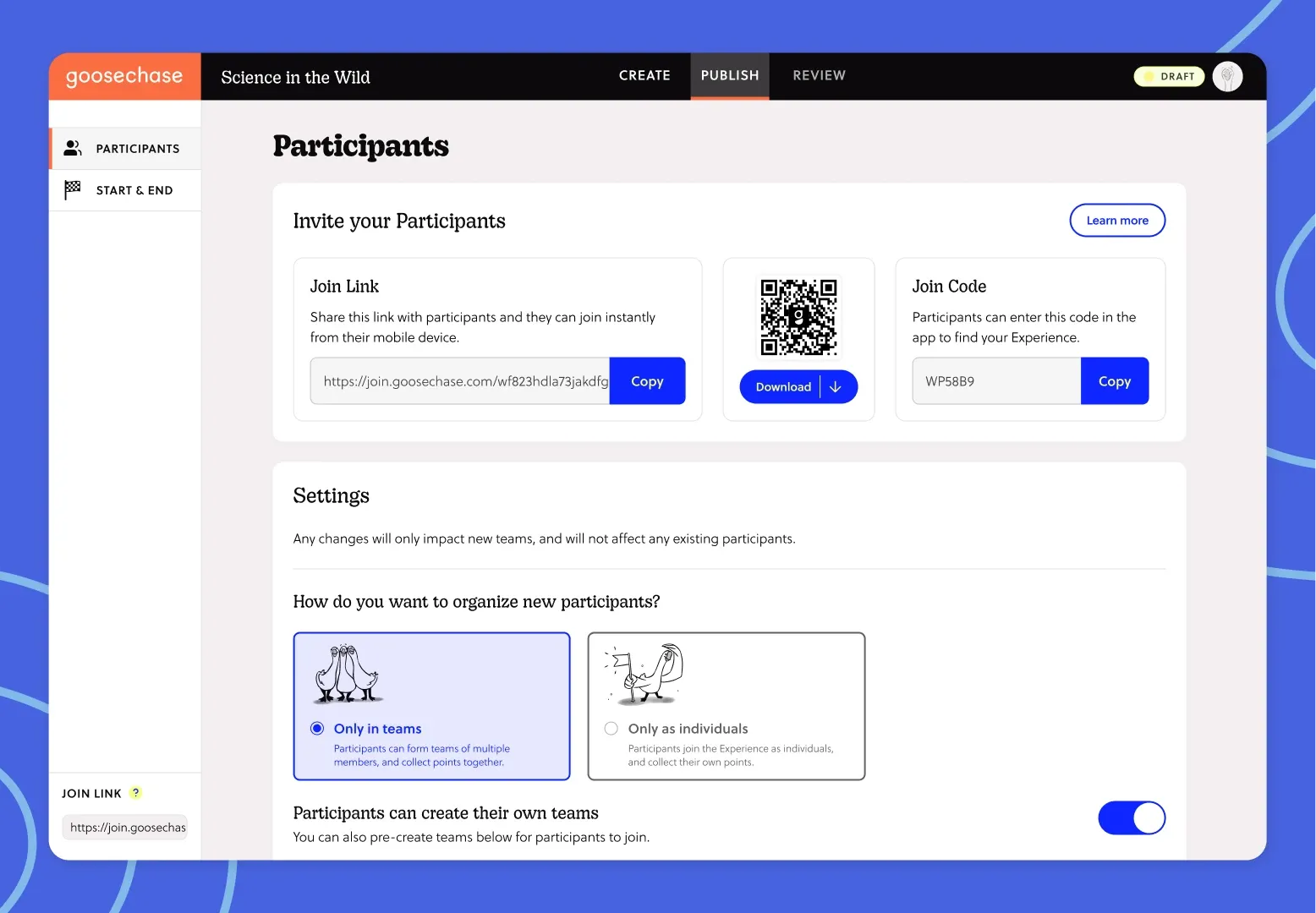
In the Goosechase Studio, go to the Participants section and generate your join link. Share it with students before the event. Each team joins using that one link.
A few team size guidelines we've seen work well:
- Elementary: 3 to 4 students per team
- Middle school: 3 to 5 per team
- High school: up to 5 or 6
Mix ability levels intentionally. It makes for a better experience and helps avoid one student carrying the whole team while others disengage.
Step 5: Brief Your Students
A quick 5-minute orientation before launch saves a lot of confusion during the event. Cover the goal, the boundaries, team rules, how to submit a Mission, and how long they have. If it's their first time using Goosechase, do a quick demo so the submission process isn't new when it counts.
Step 6: Launch and Monitor
When everyone's ready, click Go live in the Goosechase Studio.
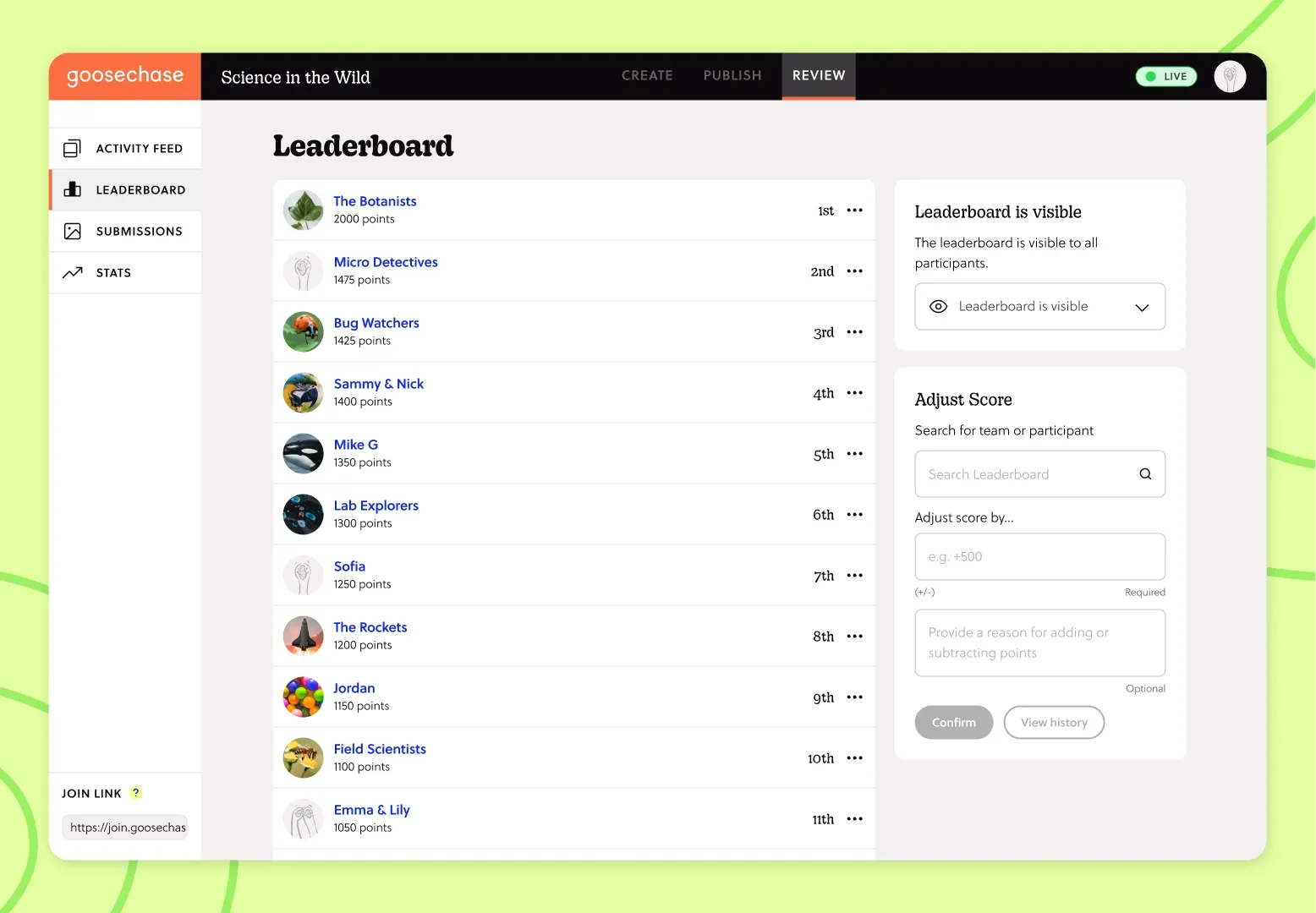
From here, you can watch submissions come in through the Activity Feed in real time, post messages to all participants using the Broadcast feature, and track team progress on the Leaderboard. You can also award bonus points for particularly creative submissions as they come in.
When time is called, end the game and pull up the final Leaderboard for the reveal.
Other Considerations
- Supervision: Make sure staff coverage matches your location scope. For multi-floor or outdoor events, assign adults to specific zones rather than monitoring everything from one spot.
- Device access: Goosechase works well on tablets, laptops, and Chromebooks, which makes it well-suited for school environments. Confirm what devices are available and whether teams will share one or use their own.
- Inclusion and accessibility: Design Missions so students of different abilities can contribute meaningfully. Offering text as an alternative to video for certain Missions is a simple way to make participation more accessible.
- Photo consent: If Missions involve photographing other students, check your school's photo policy. Missions focused on objects, spaces, and signs sidestep this entirely.
Real Examples from Real Schools

School Orientation
A principal uses Goosechase to welcome new staff on their first day. Missions send teachers to key rooms, introduce department heads, and highlight important resources around the building. New hires get oriented fast, and it actually feels like a good time. Read the full story here →
Field Trip Fundraising
When field trip costs climbed, one fourth-grade teacher ditched the bake sale and ran a ticketed Goosechase family game night instead. Families competed through photo challenges, trivia, and unlockable Missions, and the school raised enough to get every student on the bus. Read the full story here →
Library Orientation
A high school librarian swapped the quiet walking tour for a digital scavenger hunt that has freshmen exploring the space, snapping photos, and recording short videos. Many were meeting classmates for the first time, and the Missions broke the ice while they worked together. She saw a level of engagement she'd never gotten from a traditional orientation. Read the full story here →
Tips and Troubleshooting
- Everyone rushes to the same Mission: Use gated Missions or verbally assign different starting Missions to different teams so they naturally spread out.
- Teams finish too quickly: Add a bonus Mission category with higher-effort, open-ended challenges for groups that move through the main content fast.
- A team gets stuck: Build a low-point "lifeline" Mission that earns a hint for a harder one. It keeps momentum going without letting teams give up.
- Uneven participation within teams: Design at least a few Missions that require every team member to appear or contribute. It forces everyone to stay involved.
Next Steps
A digital school scavenger hunt works for more than just field day. The same structure adapts well to parent nights, school tours, curriculum review, PD days, and end-of-term events. Once you've built one Experience you like, duplicating it for future use takes minutes. Browse the Goosechase Template Library for pre-made Experiences built by K-12 educators, ready to adapt and run today
Ready to run your first digital school scavenger hunt? Goosechase for educators is free for up to 5 teams of students, and just $99/year for more.
FAQ
What grade levels does a digital school scavenger hunt work for?
Any grade, when the Missions are designed for the age group. Keep it simple and visual for younger students. Layer in more complexity, research, or creative challenges for middle and high schoolers.
How long should it run?
45 to 90 minutes works well for most groups. Shorter for younger students or tighter schedules; longer for field days or spirit week events. More suggestions here →
Do students need their own devices?
No. Teams can share a single device. One student handles submissions while others contribute to finding answers and completing challenges.
Can I reuse the same scavenger hunt for multiple classes?
Yes. Goosechase lets you duplicate and re-run Experiences. You can also save individual Missions to your Mission Bank for future use.
Is Goosechase safe for students?
Goosechase takes the privacy and security of all our customers and their data very seriously. You can read all about our policies, including Child Safety specific policies, in our Legal Resource Hub.