Step by Step: How to Run a Digital School Orientation Activity for New Students
A digital school orientation activity turns a nervous first day into a guided, game-like introduction to your school. Instead of a static tour or a stack of handouts, new students complete simple missions, like snapping a photo at the library or checking in with the school counselor, that help them learn the layout, meet key staff, and connect with peers. Below is a step-by-step plan for building one, even if you have never run a digital activity before.
The New Student Problem Every School Knows
New students rarely say much on their first day, but the nerves are obvious. They do not know where the gym is, they are not sure who to ask for help, and they have not met anyone yet. Traditional orientation, a printed map and a quick tour, gives them information, but it does not give them a reason to actually explore or talk to anyone.
A digital orientation activity flips that. New students still learn the building and the people in it, but they do it by doing something, not by listening to someone talk at them.
What You'll Be Able to Do By the End of This Guide
By the end of this post, you will know how to plan a digital orientation experience that:
- Gets new students moving through the school and meeting key staff on their own or in small groups
- Works for a wide range of ages and comfort levels, from nervous 6th graders to too-cool-for-this high schoolers
- Requires low setup and no technical background from you
- Can be reused every semester or every time new students join
What You'll Need
Before you start building, gather the following:
- A list of orientation goals. What do new students actually need to know? Common ones: where key rooms are, who staff members are, how to find their locker or homeroom, and one or two "fun" facts about the school.
- Devices for students. Goosechase works well on laptops, tablets or Chromebooks, which is what most K-12 classrooms already have on hand, and phones work too if your school allows them.
- 20 to 40 minutes. Most orientation activities fit into a single class period or advisory block.
- A few staff members in on the plan. Whoever runs the front office, library, or counseling office should know students may stop by to complete a mission.
- A Goosechase account. The Goosechase Educator Basic Plan is always free for K-12 educators, with more options available if you need more participants.
Step-by-Step Instructions
Step 1: Set your orientation goals first, then build around them.
Before opening any tool, write down the 5 to 8 things you want new students to know or do by the end of the activity. This list becomes the backbone of your Missions.
Step 2: Create your Experience in Goosechase
Log in to Goosechase and start a new Experience. Give it a clear, welcoming name, something like "Welcome to [School Name]!" You can start from a blank Experience or adapt an Experience from the Experience Template Library if a similar orientation activity already exists there.
Step 3: Turn your goals into Missions
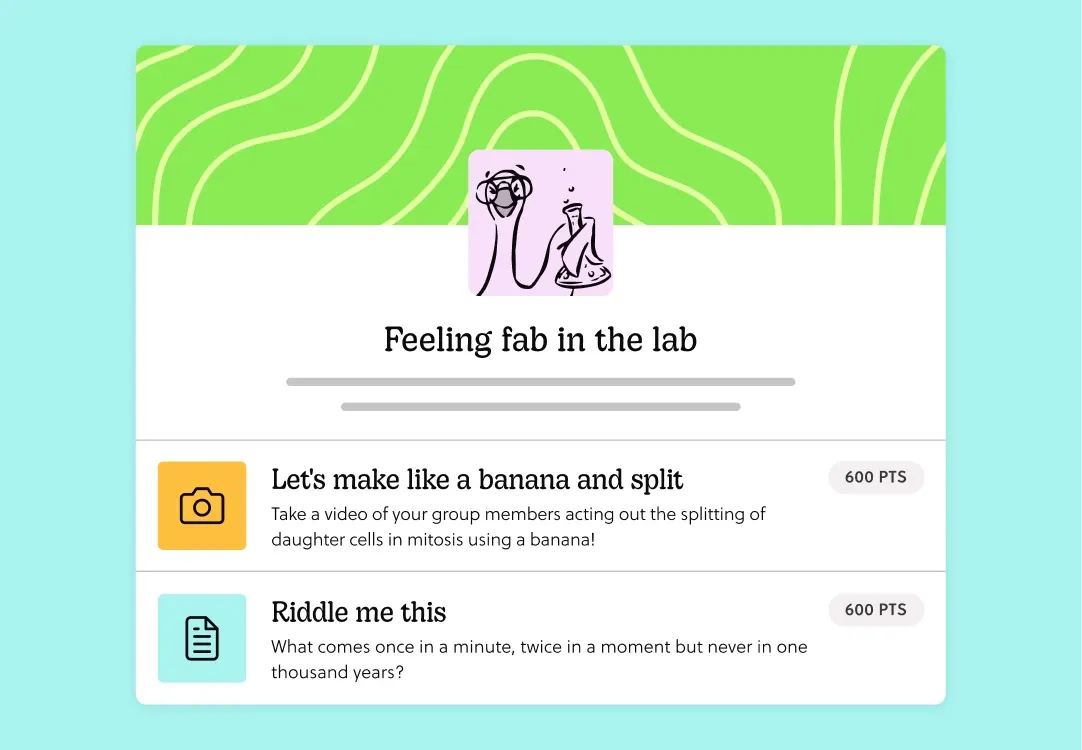
Each goal from step 1 becomes a Mission. Missions can ask students to submit a photo, a video, a GPS check-in, or a short text answer, so you can mix formats to match the task. A few examples:
- Photo Mission: "Take a photo of your locker number."
- GPS check-in: "Check in at the library."
- Text response: "What is the name of your homeroom teacher?"
- Video Mission: "Record a 10-second video introducing yourself to a new classmate."
Step 4: Sequence Missions so students explore in a logical order.
Use gated Missions if you want students to unlock the next task only after completing the one before it. This keeps orientation structured for younger students, while older students can be given more freedom to explore missions in any order.
Step 5: Decide on team size.
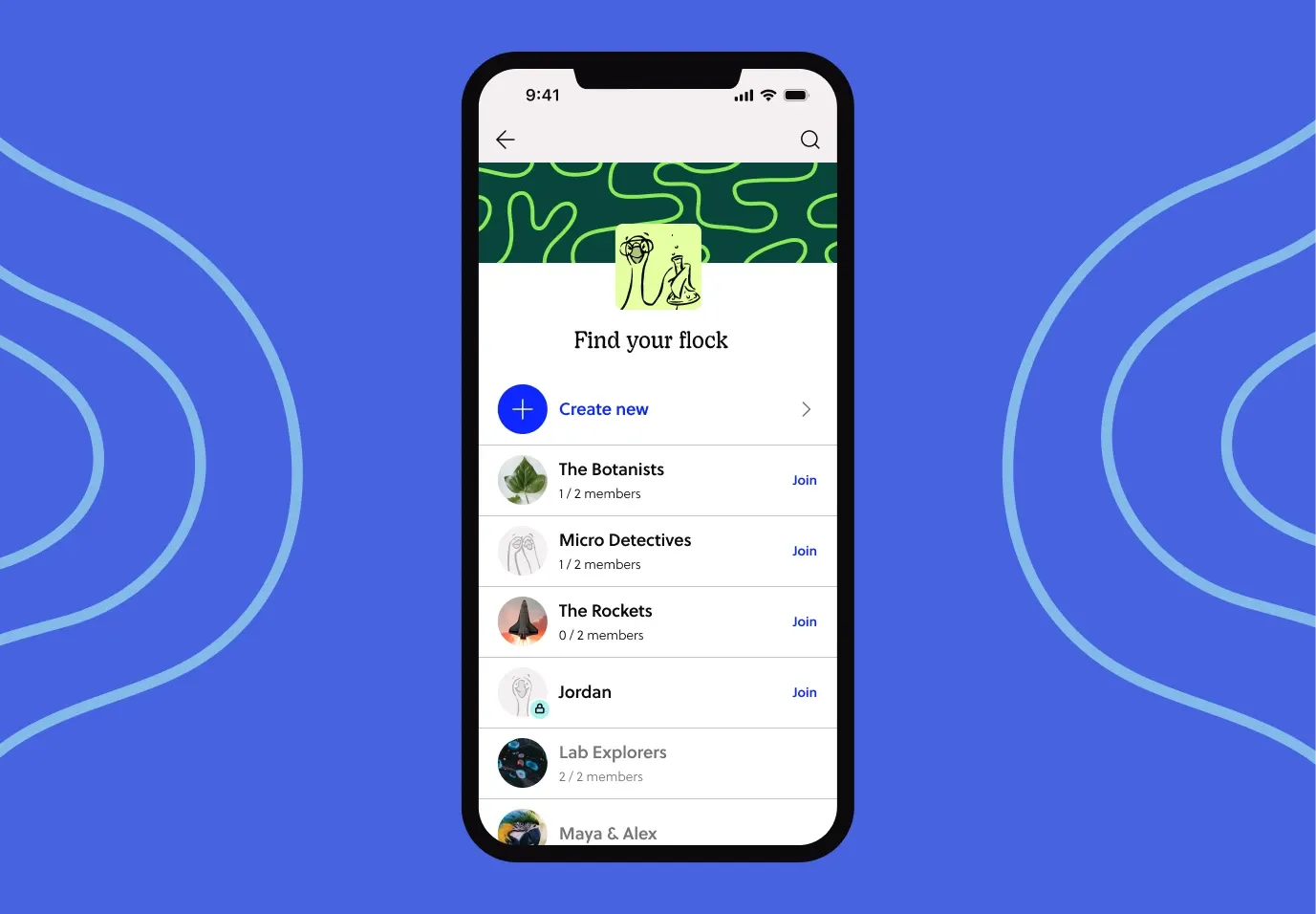
For younger students or students who are especially nervous, pair new students with an existing student buddy or place them in small teams. For older students, individual participation can work well too.
Step 6: Test the Experience yourself.
Walk through every Mission as if you were a new student. Confirm GPS check-ins register at the right locations and that instructions are clear without extra explanation.
Step 7: Run the activity.
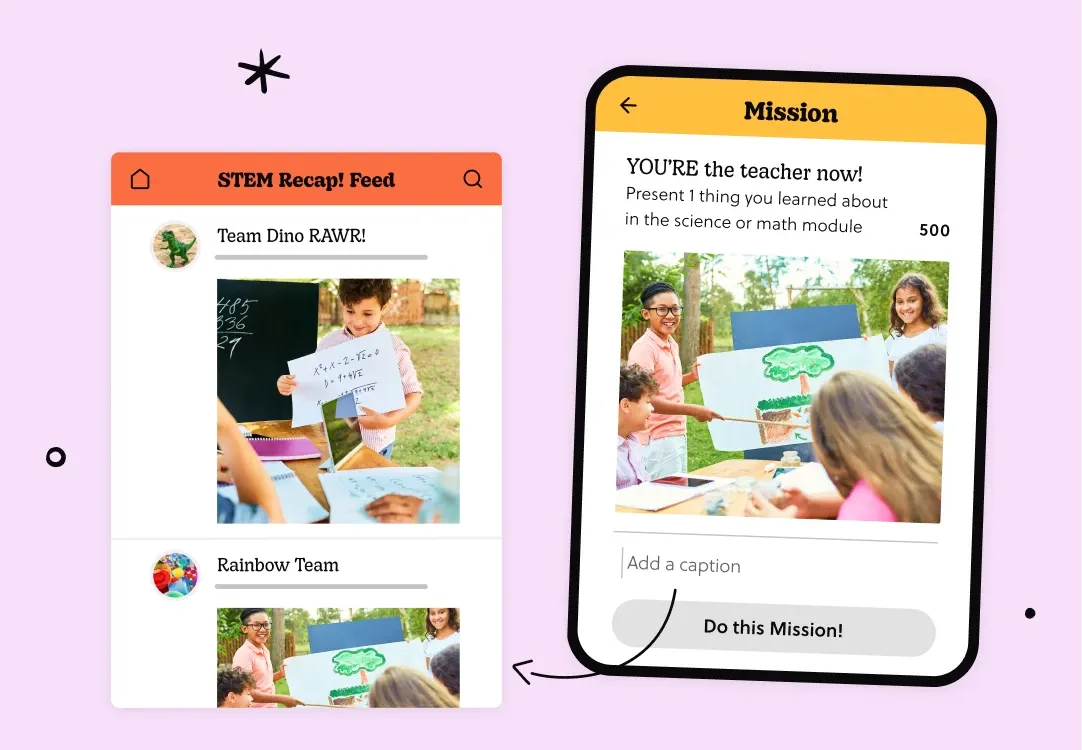
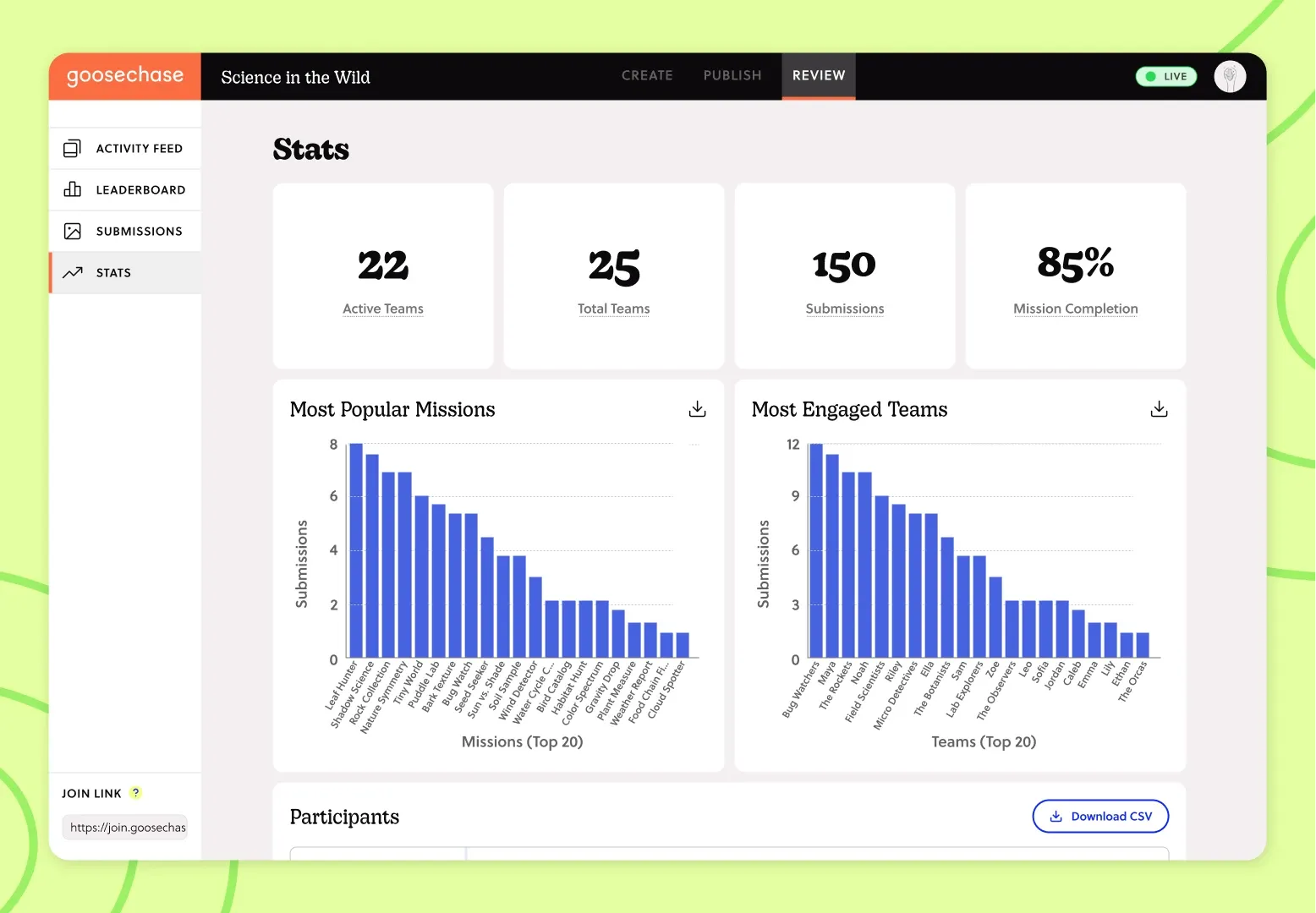
Share the join link with students on the day of orientation. As they complete Missions, submissions populate the Activity Feed in real time, so you and other staff can see participation as it happens.
Step 8: Debrief as a group.
Close the activity with a few minutes of group reflection: What did they find? Who did they meet? This turns the activity from a one-off task into a shared first memory of the school.
Other Considerations
- Age appropriateness. Younger students may need more guided, gated missions and adult supervision, while middle and high schoolers can typically handle a self-directed, un-gated format.
- Safety and security. Review what information Missions ask students to submit, and avoid anything that reveals personal details. Confirm your school or district's device and internet-use policies apply as they normally would during the activity.
- Accessibility. If any new students use assistive technology or have mobility considerations, review the physical path an activity takes them on and adjust Missions as needed.
- Staff coverage. Let any staff members whose office or classroom is part of the activity know in advance, so they are not caught off guard by a group of new students.
Real Examples
A Fun Memorable Library Orientation: Librarian Jenni George swapped the traditional library tour for a Goosechase scavenger hunt, having students photograph resources, film short clips, and hunt for items they could not bring into the library. The format helped nervous freshmen meet each other and get comfortable with the space right away.
Back to School Orientation for Staff: A district looking to go bigger could take a cue from Clint ISD, which rallied 600+ staff across 13 campuses with a single shared Experience. The same approach scales down easily for new student orientation, giving every incoming student a Mission-based way to explore campus and meet people on day one.
Tips and Troubleshooting
- Too many missions: New students are already absorbing a lot on day one. Keep the list to 5 to 8 missions so the activity feels manageable, not overwhelming.
- Missions that assume prior knowledge: Avoid referencing rooms, staff, or terms new students would not yet know. Write instructions as if the reader has never set foot in the building.
- No staff heads-up: If a Mission sends students to the counseling office or library, make sure that staff member knows ahead of time.
- Skipping the test run: A quick walkthrough before the actual event catches confusing instructions or GPS check-in issues before students hit them.
Next Steps
Once your new student orientation activity is running smoothly, consider building a related Experience for the next milestone, such as a first-week scavenger hunt, a "meet the clubs" activity, or an end-of-year school scavenger hunt to send off the year on a high note.
New students aren't the only ones who could use a warm welcome, consider a similar activity to help staff kick off the school year too.
Ready to build your school's first digital orientation activity? Explore Goosechase for K-12 and see how easy it is to get started.
FAQ
What is a digital school orientation activity?
It is a guided experience, run through Goosechase, where new students complete simple tasks such as photo submissions, GPS check-ins, or short answers to explore their new school and meet staff and classmates.
How long should a school orientation activity take?
Most digital orientation activities fit within a single class period, typically 20 to 40 minutes, depending on the number of missions and the size of the school.
Is Goosechase appropriate for younger students?
Yes. Goosechase is used across K-12 grade levels. For younger students, gated missions and adult or buddy supervision help keep the activity structured and age-appropriate.
Do students need their own devices?
Goosechase works well on tablets and Chromebooks in addition to phones, so schools can use whatever devices are already available to students.
How much does Goosechase cost for schools?
Goosechase offers a Free plan that supports up to 5 teams of students, which works for many single-classroom or grade-level orientations. Beyond that, K-12 educators can access Goosechase for just $99/year, with discounted school-wide and district-wide plans available for larger rollouts.