Step by Step: How to Use a Digital Scavenger Hunt for Your Elementary School Field Trip
A digital scavenger hunt gives elementary school field trips more structure and keeps young students actively engaged instead of just following along. This guide walks you through setting one up, from choosing your prompts to running it smoothly on the day, using a platform like Goosechase. New to running one? Our step-by-step guide to running a digital school scavenger hunt covers the basics.
The Part of Field Trips Nobody Plans For
You've booked the bus, confirmed the venue, and lined up chaperones. But once you arrive, what actually keeps 25 seven-year-olds focused and engaged for the next three hours? Without something to anchor their attention, field trips can turn into a lot of walking, a lot of pointing, and a lot of "are we there yet."

A digital scavenger hunt gives students a clear, hands-on way to interact with wherever they are, whether that's a zoo, a museum, a farm, or a nature center. Instead of just observing, they're actively looking, capturing, and completing tasks tied to what they're learning. This shift, from passive observing to active participation, is exactly the kind of hands-on learning schools have started leaning into well beyond field trips.
What You'll Be Able to Do By the End of This Guide
By the end of this post, you'll know how to build a digital scavenger hunt for your next elementary field trip, from writing age-appropriate prompts to running it smoothly with chaperones and devices on the day. You'll also have a plan for the common hiccups that come up with young students and school Wi-Fi.
What You'll Need
- Time: 30 minutes to an hour to build your hunt in advance, plus a bit of prep time on the day
- A platform to build and run the hunt: A tool that lets you create interactive tasks like photo, video, or check-in prompts for students to complete, such as Goosechase
- Devices: Any device with a web browser, like school tablets or Chromebooks for students, or chaperone’s devices for younger groups who share
- A theme or learning goal: Tied to what students are studying, so prompts feel purposeful rather than random
- Chaperones: Briefed on how to help students use the platform and submit their tasks
- A backup plan: For spots with limited Wi-Fi or cell service
Step-by-Step Instructions
Step 1: Define What You Want Students to Get Out of It
Start with your learning goal. Are students identifying animals, spotting historical artifacts, or noticing examples of a science concept? Tying the hunt to your curriculum makes it easier to justify as part of the trip and gives your prompts a clear purpose.
Step 2: Choose Your Digital Scavenger Hunt Platform
Look for a platform designed for real-time, mission-based participation rather than a static checklist. Goosechase, for example, lets you build interactive Missions using photo, video, text, or GPS check-in prompts, so students complete tasks in the moment rather than just checking boxes. It works well on the laptops, tablets and Chromebooks many elementary schools already use.
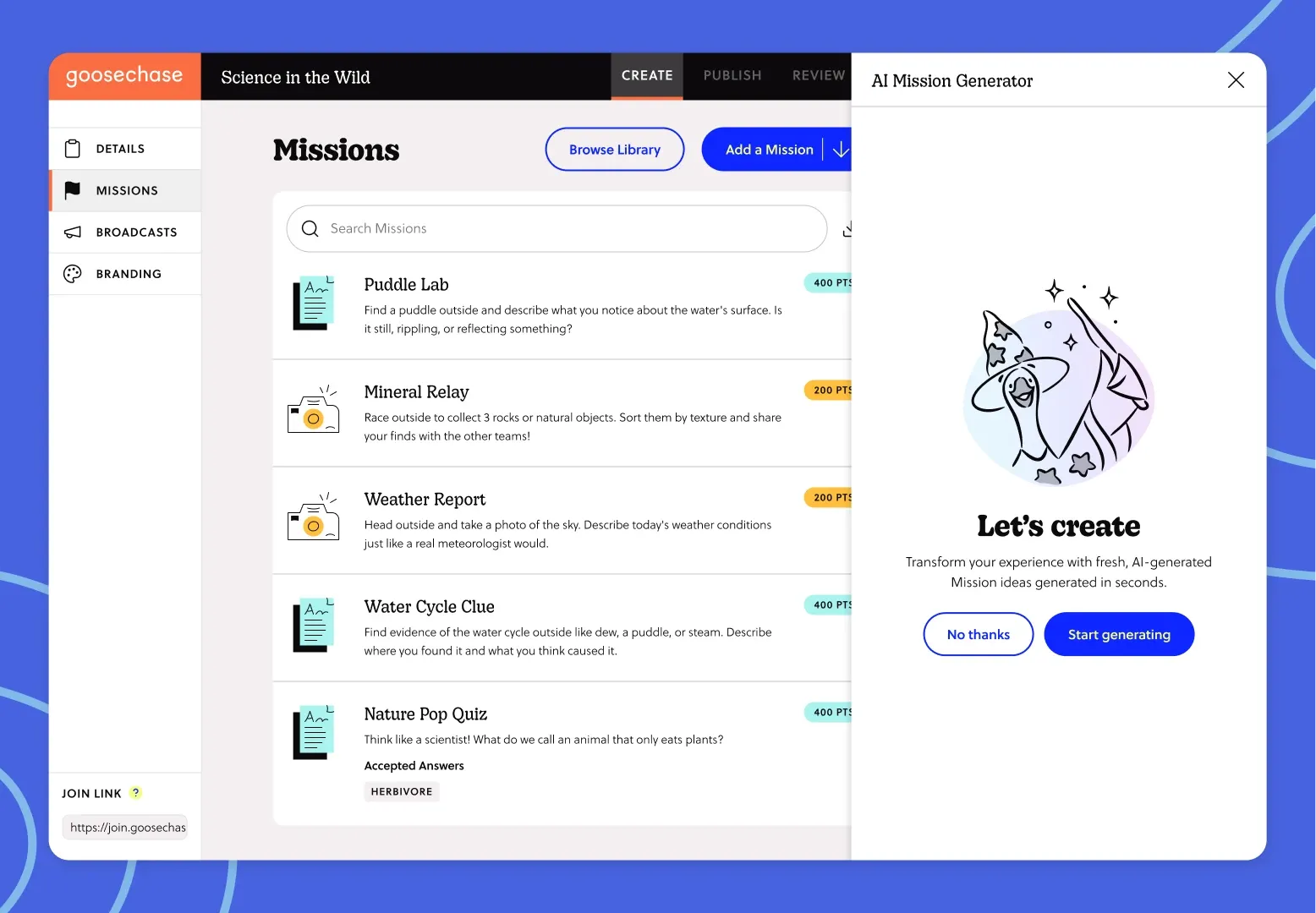
Step 3: Build Your Missions
Draft your prompts with your students' age group in mind. Keep instructions short, specific, and easy to read independently or with light adult help. A few examples:
- "Take a photo of an animal with feathers"
- "Find something that is a primary color and snap a picture"
- "Check in at the map near the entrance"
If you're short on time, Goosechase's templates, mission library, and built-in AI mission generator can help you get a starting point rather than building every prompt from scratch.
Step 4: Organize Students Into Teams
Small teams (3 to 5 students) work well for elementary age groups, especially when paired with a chaperone who can help manage devices and keep the group on task. Assign each team a device if 1:1 devices aren't available.
Step 5: Brief Chaperones and Students Before You Go
Walk chaperones through how to join and use the platform, whether on the app or in a browser, how to help students submit a Mission, and what to do if a device loses connection. For students, a short, simple explanation ("we're going to complete challenges and take pictures as we explore") is usually enough.
Step 6: Run the Hunt On-Site
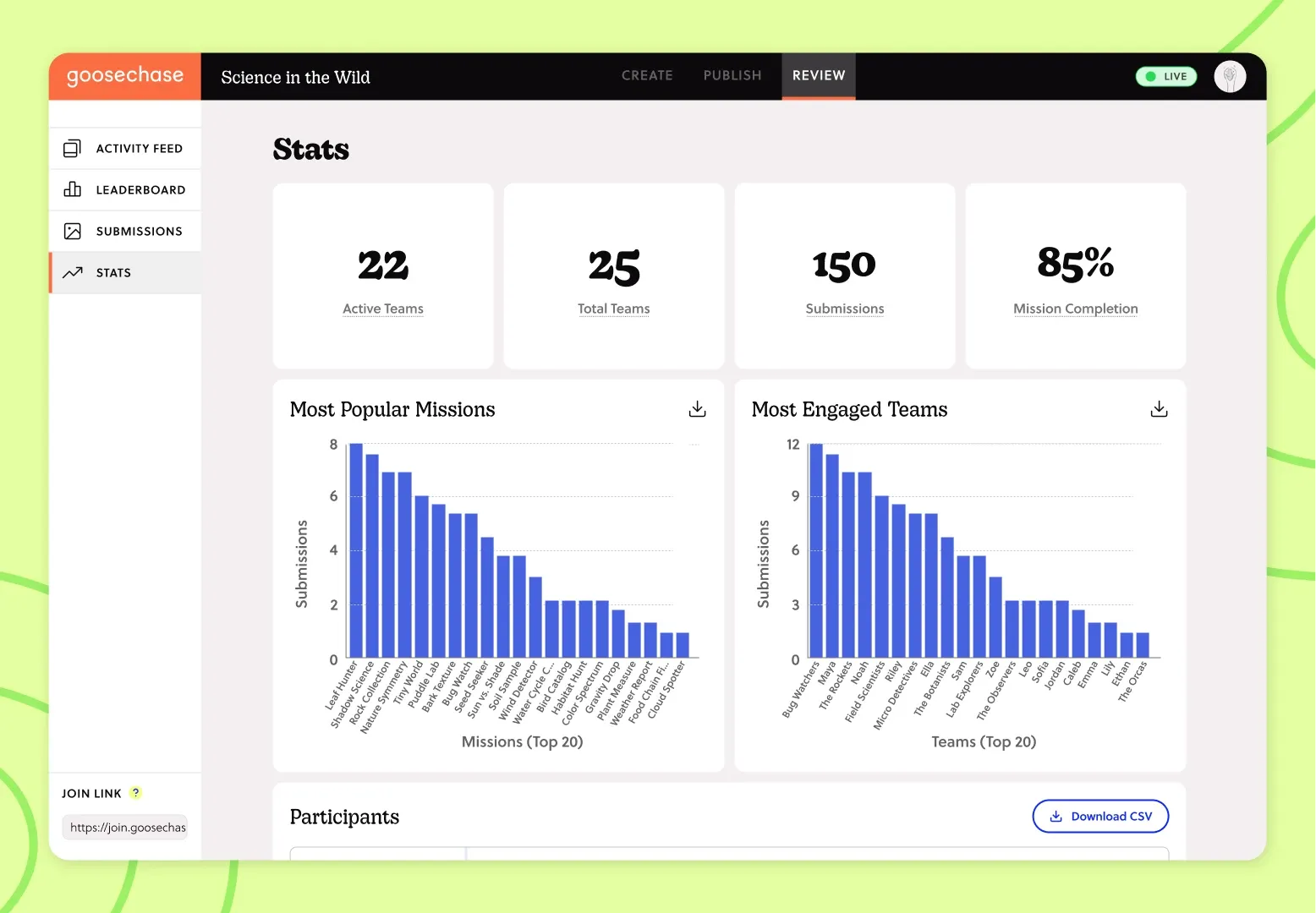
Once you arrive, start the Experience and let teams begin working through their Missions. The real-time Activity Feed lets you and chaperones see submissions coming in as they happen, which helps you keep track of where teams are and keeps energy up as students see their work posted.
Step 7: Wrap Up and Recap
Near the end of the trip, gather students to look back at some of the submissions together. This is a good moment to reinforce what they learned and let students see their peers' work, which adds a nice sense of closure to the day.
Other Considerations
- Connectivity: Confirm the venue's Wi-Fi situation ahead of time, or plan for offline photo capture if the platform supports it
- Device access: Decide in advance whether students will have individual devices or share within their team
- Accessibility: Make sure prompts and instructions are accessible for students with different needs
Example Ideas to Try
A grade 3 class visiting a science center could use photo Missions like "find something that shows how light bends" to reinforce a recent unit. A kindergarten class at a local farm might use simpler prompts like "find an animal that says moo" to keep tasks approachable for younger readers. A grade 5 class studying local history at a museum could mix photo and text Missions tied to specific exhibits to encourage closer observation than a typical walkthrough.
If you'd rather not build your Missions from scratch, a couple of ready-made lesson plans can give you a head start:
- Zoo Field Trip Scavenger Hunt (Grades 5–9, Science): A ready-made lesson plan that turns a zoo trip into a team-based Goosechase Experience, with Missions like photographing animal adaptations or tracking down a zookeeper for a quick Q&A. It's a done-for-you option for teachers who want the science tie-in without building the activity from scratch.
- Science Center Field Trip Scavenger Hunt (Grades 4–9, STEM): A ready-made lesson plan that pairs a science center or museum visit with a Goosechase Experience, having students explore exhibits, answer questions, and complete observation-based tasks tied to what they're seeing. It's a done-for-you option for teachers who want a hands-on STEM tie-in without building the activity from scratch.
Tips and Troubleshooting
- Prompts are too open-ended or wordy for the age group: Keep instructions short and concrete, and read them aloud with younger students before starting.
- Not testing the platform or devices before the trip: Do a quick test run at school a day or two before, so students and chaperones are comfortable with the basics.
- Assuming full Wi-Fi coverage at the venue: Check connectivity in advance and have a backup plan, such as offline capture or grouping students near chaperone devices.
- Too many Missions for the time available: Aim for a number of prompts that comfortably fits your schedule, with a few optional bonus Missions for teams that move quickly.
Next Steps
Once you've run your first digital scavenger hunt, think about how you'll extend the experience back in the classroom. For a look at how another school turned a similar activity into a bigger community moment, check out this case study on running a family engagement game night.
Planning a field trip and want a simple way to keep students engaged through the day?
FAQ
What is a digital scavenger hunt for a school field trip?
A digital scavenger hunt uses an app or web-based platform to guide students through interactive tasks, like photo, video, or check-in prompts, tied to what they're exploring on a field trip, rather than a paper checklist.
What age group is a digital scavenger hunt appropriate for?
Digital scavenger hunts can work for a wide range of elementary grades, as long as prompts are adjusted to reading level and independence, with younger students typically working in small teams alongside a chaperone.
Do students need their own device to participate?
No. Many elementary classrooms run digital scavenger hunts in small teams sharing one device, especially in younger grades, which also helps with supervision and collaboration.
What if the venue has poor Wi-Fi or cell service?
Check connectivity with the venue ahead of time. Some platforms support offline photo capture, or you can group students near a chaperone's device to reduce reliance on individual connectivity.